Transform a source video with a written direction
Start with an existing MP4 or MOV clip, then describe the look, scene or motion you want to change. This page uses source-video references; Text to Video and Image to Video are separate tools.
Upload a source clip using the video input above. Accepted clip count, file size and duration depend on the selected model; follow the limits shown beside the upload control.
Transform a source video with a written direction
Use the train-city artwork to discuss a visual style. Upload your own source clip in the form; the still images below illustrate a direction and do not document a completed video conversion.
Open the composer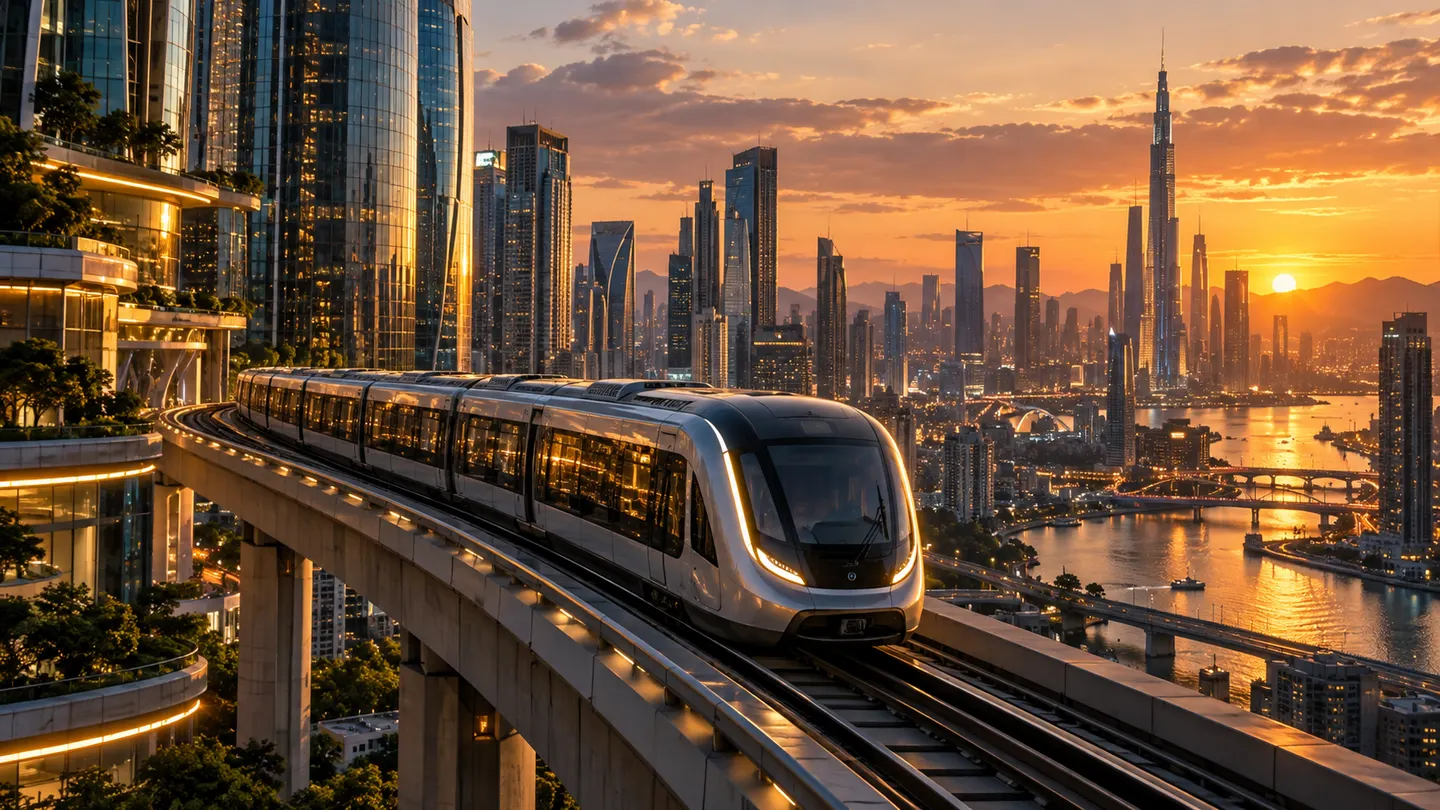
Upload the reference accepted by the selected model
The source-video control accepts MP4 and MOV clips. Check the selected model’s clip count, size and duration limits before uploading; still-image references belong to the separate image inputs, where available.
Open the composer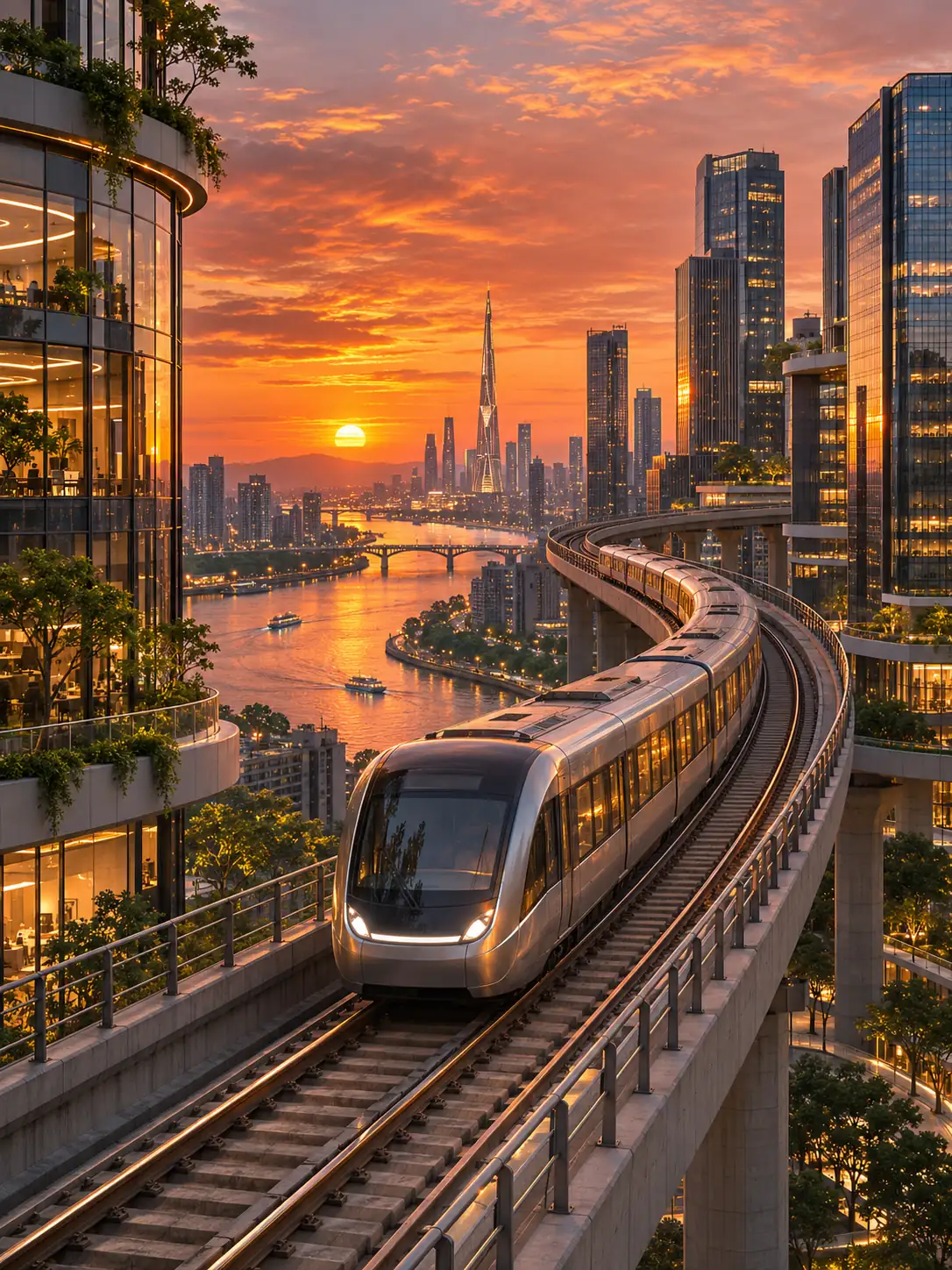
Compare moving source and output videos
Review the generated video alongside your source clip. Check subject appearance, motion, timing and scene continuity across the whole sequence; a cover image alone cannot establish conversion quality.
Open the composer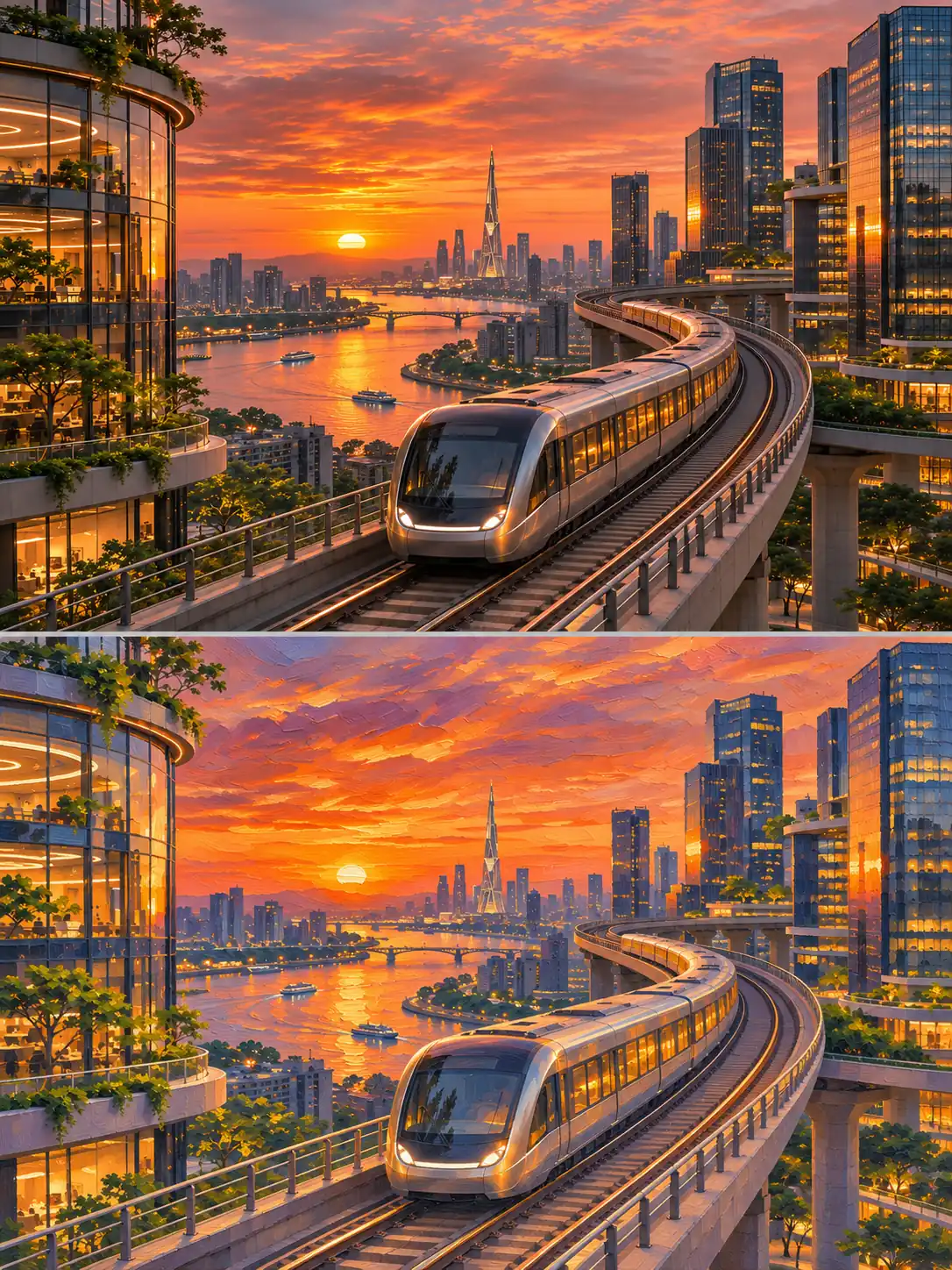
A source-video workflow with model-specific limits
The source clip provides a moving reference. Your prompt describes the change; the result still needs a full playback review.
From source clip to reviewed output
Upload your source video, write a clear transformation brief, then compare the generated result with the original clip.
From source clip to reviewed output
- 01
Choose a model and source video
Check the model’s upload limits and attach an MP4 or MOV clip that fits them.
- 02
Describe the intended change
Explain the visual style or action you want to change, and describe the subjects or composition you want the model to retain.
- 03
Generate and review the whole video
Compare the output with the source from beginning to end. Refine the prompt if the subject, motion or scene changes in an unwanted way.
Video references and image references serve different tasks
Video to Video takes a moving source clip as a reference for generation. Image to Video starts from still pictures instead. Select the tool that matches the material you want to use.
Generative changes do not guarantee exact preservation of every frame, cut or caption. Use the video editor when you need precise timeline edits, and review any generated output before publishing.
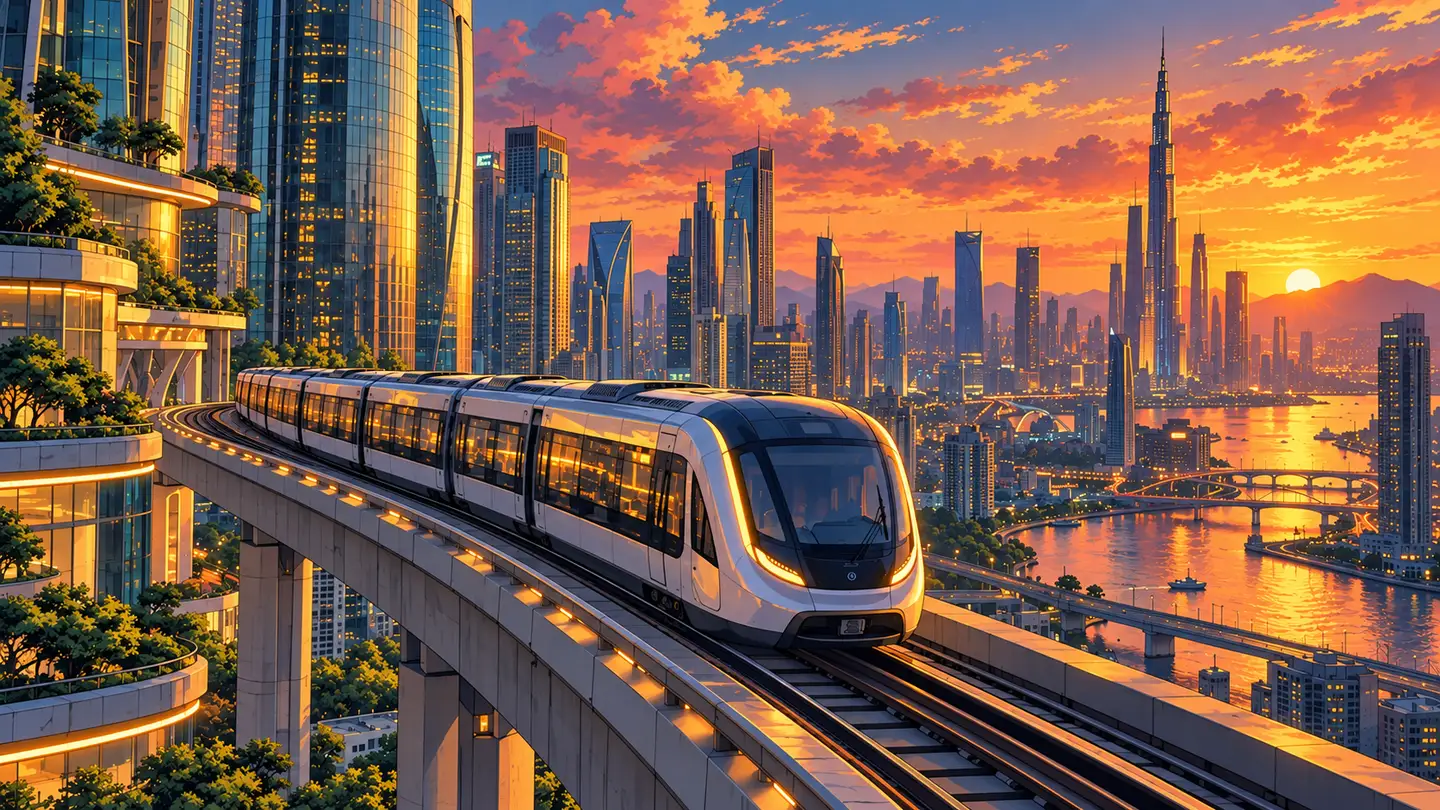
Source-video upload and result review
Can I upload a source video here?
Yes. Use the source-video input to upload an MP4 or MOV clip. Clip count, size and duration limits vary by model and are shown in the form.
Are the train images a verified video conversion example?
No. They are illustrative style references. A conversion comparison requires the actual moving source video and its corresponding generated output.
Will it preserve exact cuts and captions?
Exact cuts, timing and captions are not guaranteed by generative video. Use the video editor for precise timeline work and check the full generated clip before use.