Choose the picture-reference route for an existing asset
When the source asset already defines the scene, a picture-reference task keeps that starting point explicit. The next question is which movement would add value to the picture rather than replace its subject.
Selecting this example only fills the motion prompt. It does not upload your picture, choose a model, or start a generation.
Choose the picture-reference route for an existing asset
The hummingbird asset offers an obvious contained action: hovering beside the flower. Use it to separate appearance supplied by the image from motion supplied by the prompt.
Open the composer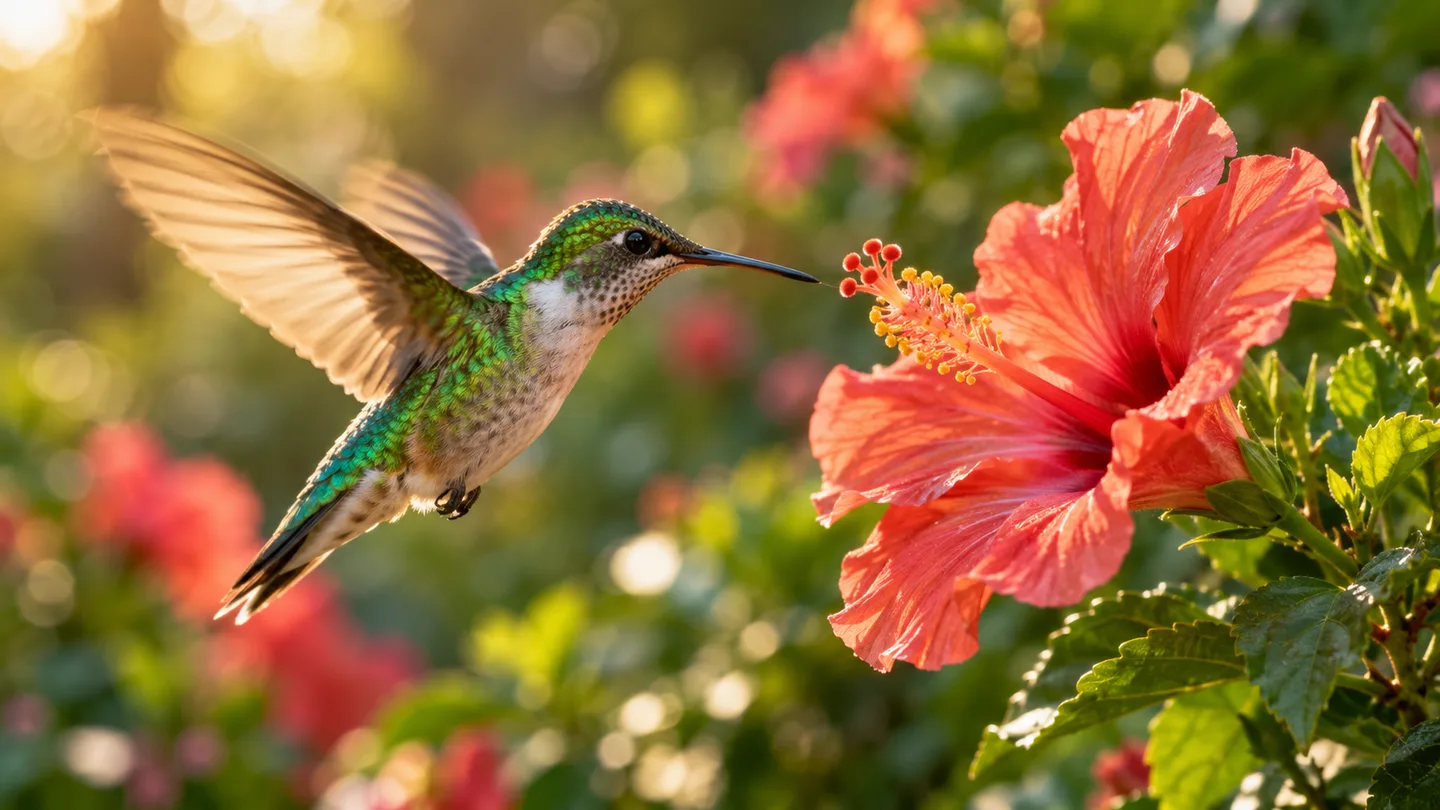
Allocate information to the right input
The uploaded picture carries the bird, flower and framing. The text can specify wingbeats and camera behavior instead of inventing another subject that conflicts with the asset.
Open the composer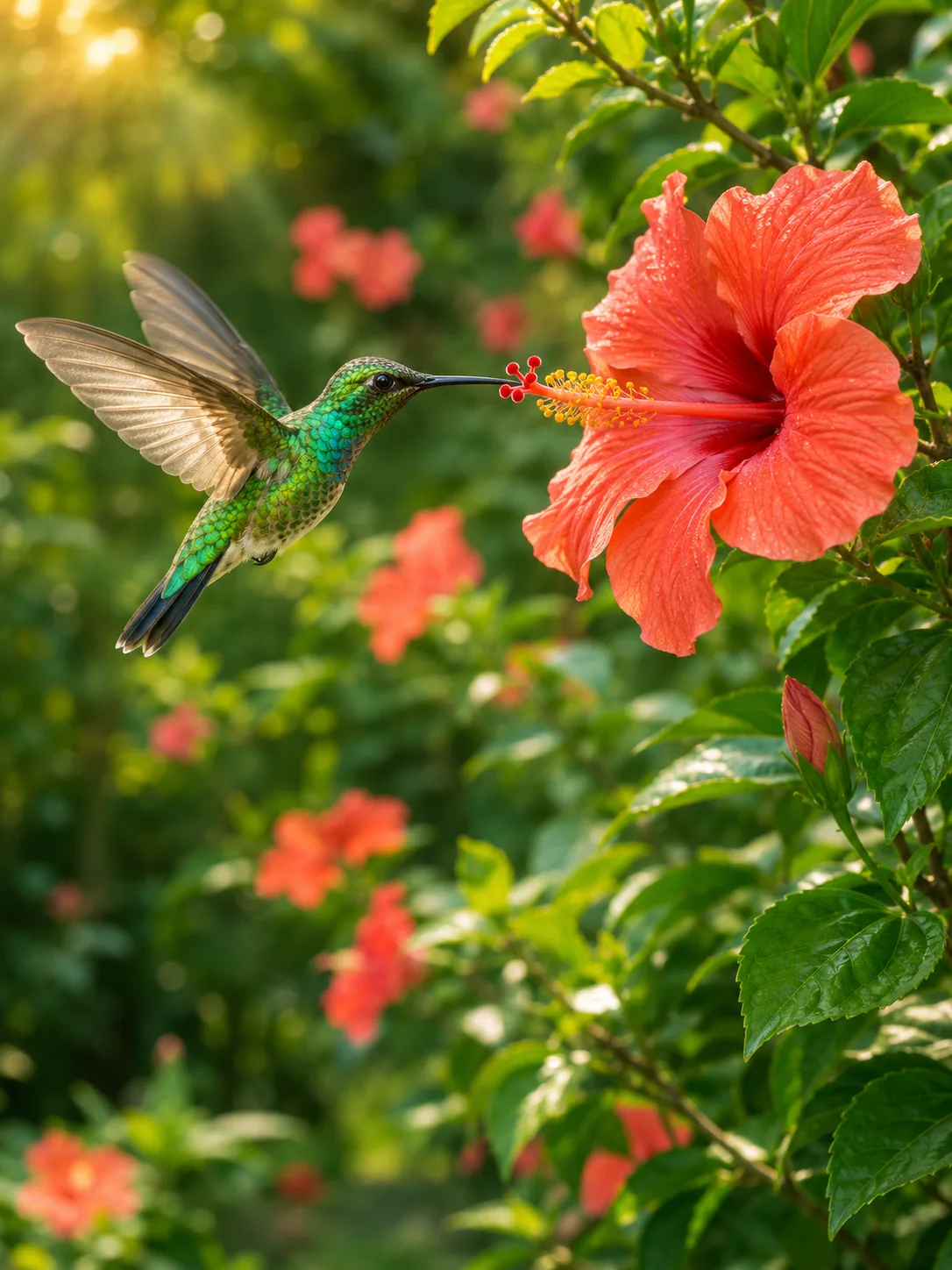
Treat reference options as model-specific
A single picture, an optional end picture and additional reference modes are not universally equivalent. Follow the controls offered by the chosen model rather than assuming one rule covers them all.
Open the composer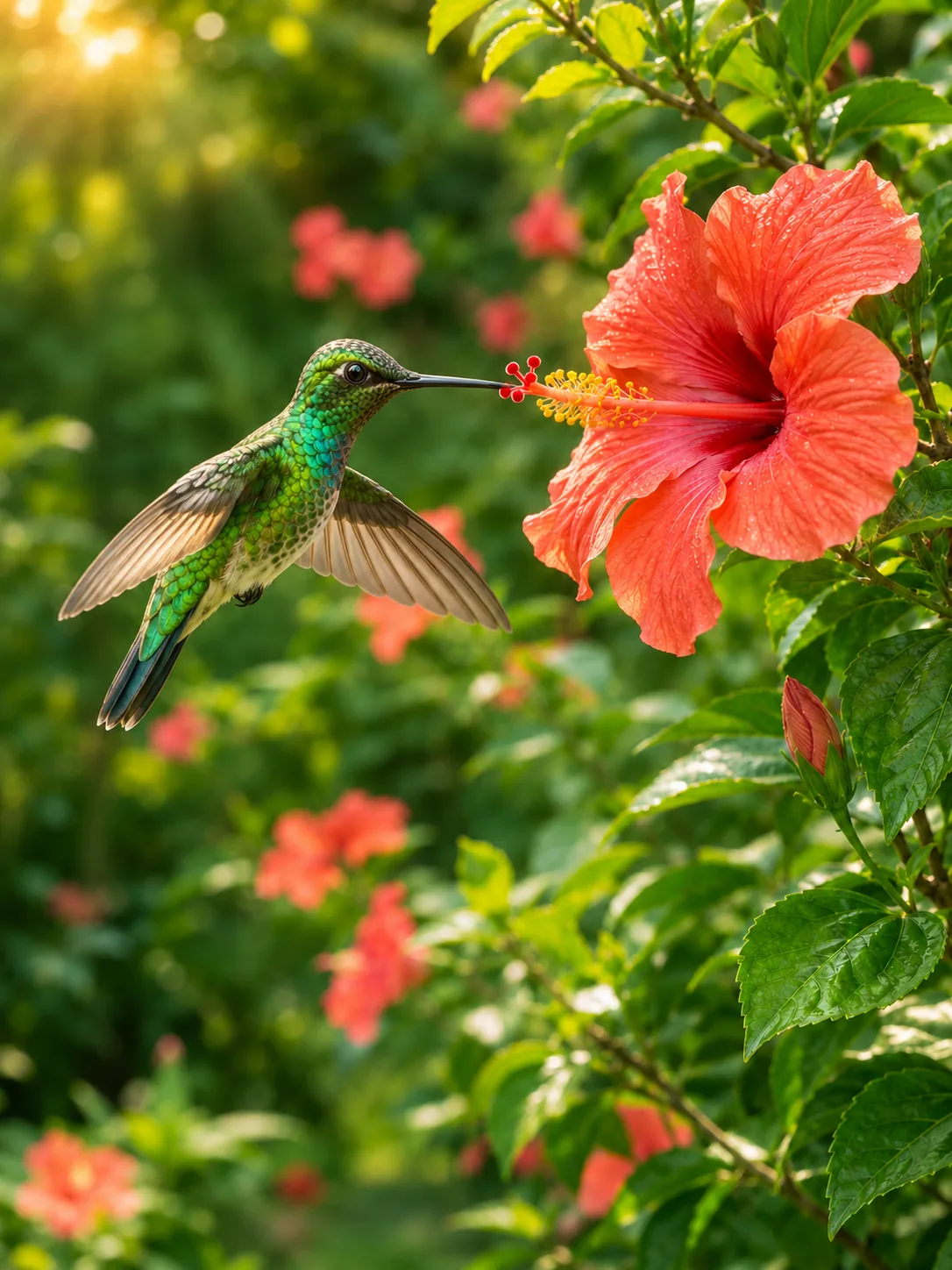
Give a still asset a bounded motion brief
Choose movement that works within the picture’s existing composition, with a separate instruction for the camera.
Attach the picture that sets the scene
Attach the chosen visual asset through the actual model’s image-reference path and supply a motion-only direction that fits it.
Check the subject throughout the movement
Evaluate whether the asset remains recognizable after movement is introduced; acceptance of a reference is not proof of exact detail retention.
Select the asset before specifying motion
Choose the source picture first, describe the movement around its subject, and review the resulting sequence against that starting asset.
Select the asset before specifying motion
- 01
Select the existing-picture task
Choose image-reference video when the starting asset, not a new written scene, should determine the appearance.
- 02
Define what changes over time
Request small hovering movement around the current bird position; inspect the reference requirements, model settings and shown charge.
- 03
Review the moving asset
Check bird proportions, flower shape and background before deciding whether to use the result independently or in an edit.
A visual asset plus a temporal direction
Image-to-video pairs a visual asset with an instruction about movement. It is neither a photo-color revision nor a source-video conversion task.
Use the starting picture as a visual checklist: follow the bird outline, flower petals and background through the full sequence.
Reference choices within the toolkit
Can I start with this picture without editing it first?
An image edit is not a required preceding step. Use the existing asset if its appearance already meets the needs of the motion idea.
Do all models accept the same number of references?
Do not assume they do. Check the selected model’s actual image-reference controls before preparing extra pictures.
Will the picture automatically become a finished sequence?
Review the generated motion as an asset. Combining several takes, making exact cuts and aligning other media are separate jobs.